CloudConvert MOV to MP3 Alternative
Compare CloudConvert MOV to MP3 with a no-required-upload browser alternative for privacy, large files, batch work, and MP3 downloads.
Want to convert a file now?
Use the same workflow described in this guide and start directly from the main converter page.
CloudConvert MOV to MP3 Alternative
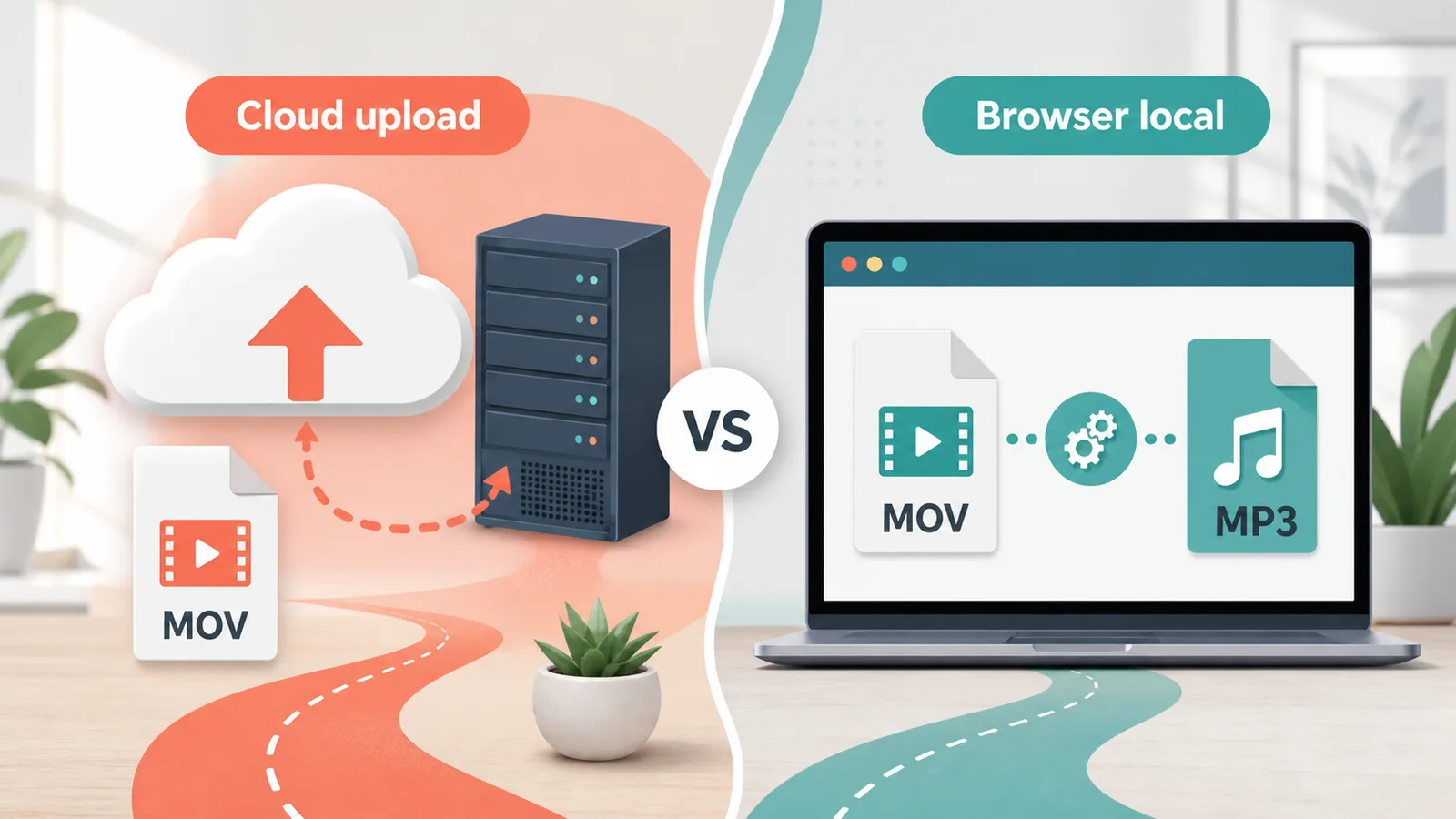
If you are searching for a CloudConvert MOV to MP3 alternative, the main choice is not just one converter versus another. It is cloud upload versus browser-local processing. CloudConvert is a broad online conversion platform with a dedicated MOV to MP3 page, while movtomp3.cc focuses on a narrower no-required-upload MOV to MP3 workflow in the browser.
For quick personal MOV, iPhone, or QuickTime audio extraction, the browser-local route is usually simpler: add the MOV file, convert it to MP3, and download the result without installing software or creating a cloud conversion job.
Quick Answer
- Use movtomp3.cc when you want a focused MOV to MP3 tool, no required upload step, up to 10 files in a 2GB queue, and ZIP download for completed batch results.
- Use CloudConvert when you want a general-purpose online converter, cloud-based file handling, conversion options across many formats, or account-based billing features.
- Check CloudConvert's current pricing page before relying on free or paid limits, because credits and plan details can change.
- For privacy-sensitive source files, compare the workflow itself: browser-local conversion keeps the main processing path on your device, while a cloud converter requires files to pass through the converter service.
Table of Contents
- CloudConvert MOV to MP3 vs Browser Alternative
- When CloudConvert Is Useful
- When movtomp3.cc Is Simpler
- Privacy and File Handling
- Pricing and Limits
- How to Choose the Right Workflow
- Related MOV to MP3 Guides
- FAQ
CloudConvert MOV to MP3 vs Browser Alternative
CloudConvert publishes a MOV to MP3 converter page and describes its service as an online file conversion platform. That makes it useful when you already want a cloud conversion workflow. The tradeoff is that an online cloud converter normally depends on upload, processing, and download steps.
movtomp3.cc is different by design. It is narrower, but that narrowness helps when the only task is extracting MP3 audio from MOV files in the browser.
| Decision point | CloudConvert MOV to MP3 | movtomp3.cc browser alternative |
|---|---|---|
| Main workflow | Online cloud conversion | Browser-side conversion |
| Upload requirement | Cloud workflow requires file transfer to the service | No required upload-first step for the main tool |
| Best fit | General file conversion and account-based use | Quick MOV, QuickTime, and batch MP3 extraction |
| Account and pricing | Check current credits and plans on CloudConvert | Core converter can be used without signup |
| Batch handling | Depends on current CloudConvert workflow and plan | Up to 10 files and 2GB total queue |
| Download style | Cloud conversion result download | Individual MP3 downloads or ZIP for completed files |
| Tool scope | Many formats and advanced options | Focused MOV to MP3 audio extraction |
When CloudConvert Is Useful
CloudConvert is useful when you want a general converter rather than a single-purpose MOV to MP3 tool. Its MOV to MP3 page says it converts video files online and supports many video formats beyond MOV, including MP4, WEBM, and AVI.
Choose CloudConvert when:
- you need a broader online conversion platform;
- you want conversion settings exposed by a cloud tool;
- you already use a CloudConvert account or API workflow;
- you need formats outside the focused MOV to MP3 path;
- you are comfortable with upload-based processing;
- you want billing, credits, or team features managed in one cloud service.
That does not make CloudConvert the wrong tool. It simply means the workflow is a better fit for people who want cloud conversion.
When movtomp3.cc Is Simpler
movtomp3.cc is simpler when the job is exactly MOV to MP3. The site avoids a broad dashboard and keeps the primary action close to the top of the page: add files, convert, download.
Use the browser alternative when:
- the source is a
.mov, iPhone video, screen recording, camera clip, or QuickTime-style MOV file; - you want to avoid a required upload-first workflow;
- you need to convert several MOV files in one queue;
- you want completed results packaged as a ZIP;
- you do not need custom codec settings or a cloud account;
- you want the conversion experience to stay focused on MP3 output.
If you need exact bitrate control, command-line logging, or automation, use the MOV to MP3 with FFmpeg guide instead.
Privacy and File Handling
Privacy is one of the clearest workflow differences. CloudConvert's privacy policy explains how the company handles data for its service, and the platform's MOV to MP3 page is an online conversion page. That is appropriate for users who accept a cloud converter.
For a browser-local converter, the practical appeal is different: the main conversion work runs on your device. That can be more comfortable for personal recordings, internal meetings, voice notes, lectures, interviews, or client drafts where you prefer not to upload the original MOV file just to extract an MP3.
Use this simple rule:
| File type | Better starting point |
|---|---|
| Public sample, test file, or non-sensitive media | Either workflow can work |
| Personal video, meeting, lecture, or client draft | Start with browser-local conversion |
| File requiring account workflows, API, or cloud storage | CloudConvert may fit better |
| Very technical repeatable job | Consider FFmpeg |
No online article can replace your own compliance rules. If the source file is confidential, follow your organization policy first.
Pricing and Limits
CloudConvert uses a credits model. Its pricing page explains that packages and subscriptions generally consume credits based on conversion time, with at least one credit per conversion and only successful conversions charged. The same page also presents a free starting option.
Because pricing and limits can change, this article does not hard-code a long-term CloudConvert free allowance. Before planning recurring work, open the current CloudConvert pricing page and verify:
- free conversion allowance;
- file size and conversion limits;
- package and subscription pricing;
- whether unused credits expire;
- account, team, or API needs.
For movtomp3.cc, the important limits are simpler: the browser converter supports up to 10 files and a 2GB total queue in the current workflow.
How to Choose the Right Workflow
- Decide whether you prefer a cloud converter or browser-local conversion.
- If you want CloudConvert, open the official CloudConvert MOV to MP3 page, add your file, and follow its current interface.
- If you want the no-required-upload browser route, open movtomp3.cc, add your MOV files, and click Convert.
- Download each completed MP3, or use ZIP download when you processed several files.
- If the browser warns about file size or device risk, reduce the queue, try a stronger desktop browser, or use the FFmpeg guide.
Related MOV to MP3 Guides
- How to Convert MOV to MP3
- Convert Large MOV to MP3 Without Uploading
- Batch Convert MOV to MP3
- QuickTime to MP3
- MVI to MP3
- MOV to MP3 with VLC
- MOV to MP3 with FFmpeg
- MOV to MP3 Quality and Bitrate Guide
FAQ
Is movtomp3.cc a CloudConvert alternative for MOV to MP3?
Yes, movtomp3.cc can be used as a CloudConvert alternative when your specific task is converting MOV to MP3. It is not a full replacement for every CloudConvert format or API feature, but it is a focused browser option for MOV audio extraction.
Does CloudConvert require uploading the MOV file?
CloudConvert is an online cloud conversion service, so its normal workflow involves sending the file through its service before you download the converted result. Review CloudConvert's current product and privacy pages if upload handling is a deciding factor.
Which option is better for large MOV files?
Start with movtomp3.cc if you want to avoid a required upload-first workflow and your files fit within the browser queue. Use a cloud tool or FFmpeg when the browser does not have enough memory, the file is outside the queue limit, or you need more technical control.
Is CloudConvert free for MOV to MP3?
CloudConvert's pricing page shows a free starting option, but credits, limits, and paid plan details can change. Check the official pricing page before relying on a specific allowance for recurring MOV to MP3 work.
What is the fastest way to convert a MOV to MP3 without CloudConvert?
Open movtomp3.cc, add your .mov file, click Convert, and download the MP3. For multiple files, add them to the queue and download completed outputs as individual MP3 files or a ZIP archive.
Conclusion
The best CloudConvert MOV to MP3 alternative depends on the workflow you want. Choose CloudConvert if you need a broad cloud converter with account-based features. Choose movtomp3.cc if you want a focused MOV to MP3 converter with no required upload-first step, batch queue support, and a simple MP3 download path.
Sources
- CloudConvert MOV to MP3, checked August 31, 2026.
- CloudConvert Pricing, checked August 31, 2026.
- CloudConvert Privacy Policy, checked August 31, 2026.