How to Convert MOV to MP3
Convert MOV to MP3 in your browser with a simple no-required-upload workflow, batch queue support, and practical quality notes.
Want to convert a file now?
Use the same workflow described in this guide and start directly from the main converter page.
How to Convert MOV to MP3
To convert MOV to MP3, you usually need to extract the audio track from the MOV file and save that audio as an MP3. The fastest everyday option is to use a browser-based workflow: add the MOV file, start conversion, then download the MP3 output.
You can start from the main tool here: open the MOV to MP3 converter.
Quick Answer
- Use movtomp3.cc when you want a direct MOV to MP3 workflow in the browser.
- Add a
.MOVor common QuickTime-style MOV file from your device. - Click Convert and wait for the browser-side conversion to finish.
- Download the MP3 file, or download all completed files as a ZIP when you process a batch.
- The queue supports up to 10 files and 2GB total; large files may take longer depending on your browser and device.
What MOV to MP3 Conversion Does
A MOV file is a media container often associated with QuickTime video. It can include video, audio, subtitles, and metadata. An MP3 file is audio-only.
When you convert MOV to MP3, the useful part is usually the audio track. You are not creating sound from the visual part of the video; you are extracting the sound that is already inside the MOV file and saving it in a more portable audio format.
This is useful for:
- Interviews and voice recordings
- Lectures, classes, or webinars
- Meeting recordings
- Personal videos where you only need the soundtrack
- Spoken content that you want to transcribe or review later
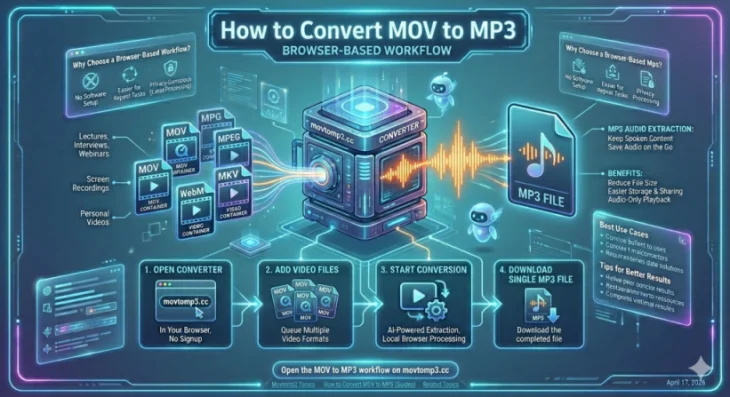
How to Convert MOV to MP3 in 4 Steps
1. Open the converter
Go to movtomp3.cc. The main workflow is designed to run in your browser, so you do not need to install desktop software first.
2. Add your MOV file
Drag your .MOV file into the upload area, or click to browse from your device. If you have multiple files, you can add them to the queue and process them together.
The same workflow can also handle MPG, MPEG, MP4, AVI, MKV, WebM, and FLV files when the goal is MP3 output.
3. Start conversion
Click Convert. The tool processes the queue and shows the status for each file.
For larger files, conversion speed depends on the file size, source codec, available browser memory, CPU performance, and whether you are using a desktop or mobile browser.
4. Download the MP3
When conversion finishes, download the MP3 file. For batch jobs, you can download files one by one or use the ZIP download option for completed outputs.
Why Use a Browser-Based MOV to MP3 Workflow
There are several ways to extract audio from a MOV file. A browser-based converter is useful when you want a short path from video file to playable audio.
| Method | Best for | Tradeoff |
|---|---|---|
| Browser-based converter | Fast everyday MOV to MP3 conversion, batch queue, no required software setup | Very large files still depend on browser and device resources |
| VLC | Users who already know VLC's conversion flow | The export path can feel less direct |
| Audacity | Users who also want to edit audio | More setup and more steps |
| FFmpeg command line | Advanced users who need precise control | Not beginner-friendly |
For most visitors, the browser-based path is the easiest place to start.
Supported Video Formats
MOV is the main use case for this site, but the same MP3 extraction workflow can also be used with:
- MOV to MP3
- MPG to MP3
- MPEG to MP3
- MP4 to MP3
- AVI to MP3
- MKV to MP3
- WebM to MP3
- FLV to MP3
This keeps your workflow consistent when you need audio from different video containers.
Quality and File Size Notes
MP3 is a lossy audio format, so converting to MP3 is not the same as preserving a mathematically lossless copy of the original audio.
The current movtomp3.cc workflow uses a built-in browser-side quality profile rather than a manual 320kbps selector. For everyday speech, lectures, and general listening, this practical profile is usually more important than exposing many technical options. If you need exact bitrate control, a desktop tool or FFmpeg command may be a better fit.
For better results:
- Keep the original MOV until you confirm the MP3 sounds right.
- Use a desktop browser for heavier files when possible.
- Process fewer files at once if your device becomes slow.
- Retry with a smaller batch if a conversion fails.
MOV, QuickTime, and MP3
Many MOV files come from Apple or QuickTime-related workflows, but the important detail is the container: if the browser can read the file and the conversion engine supports the media track, the tool can extract audio to MP3.
If your search was specifically about QuickTime, see the related guide: QuickTime to MP3.
If you are doing this on macOS, use the Mac-focused guide: Convert MOV to MP3 on Mac.
If the source file is large and you want to avoid an upload-first workflow, read: Convert Large MOV to MP3 Without Uploading.
FAQ
Can I convert a .mov file to MP3 online?
Yes. Add the .MOV file to the converter, start the browser-based workflow, and download the MP3 when processing finishes.
Do I need to upload the MOV file first?
The main workflow is designed around browser-side processing rather than a required upload-first flow.
Is MOV to MP3 conversion free?
The core browser-based conversion workflow on movtomp3.cc is available without signup.
Can I convert multiple MOV files at once?
Yes. You can add multiple files to the queue and download completed MP3 files individually or as a ZIP.
Can I convert MOV to MP3 at 320kbps?
Not as a manual setting in the current tool. The current workflow uses a built-in quality profile instead of a visible 320kbps selector.
Does this work on Mac and Windows?
Yes. The browser-based workflow is intended for modern desktop browsers on Mac, Windows, Linux, and similar environments.
Try the Converter
If you want the shortest path from a MOV file to playable audio, start here:
Related guides: