MOV to MP3 with VLC: Converter Guide
Learn how to convert MOV to MP3 with VLC, when VLC is worth using, and when a browser-based MOV to MP3 converter is simpler.
Want to convert a file now?
Use the same workflow described in this guide and start directly from the main converter page.
MOV to MP3 with VLC: Converter Guide
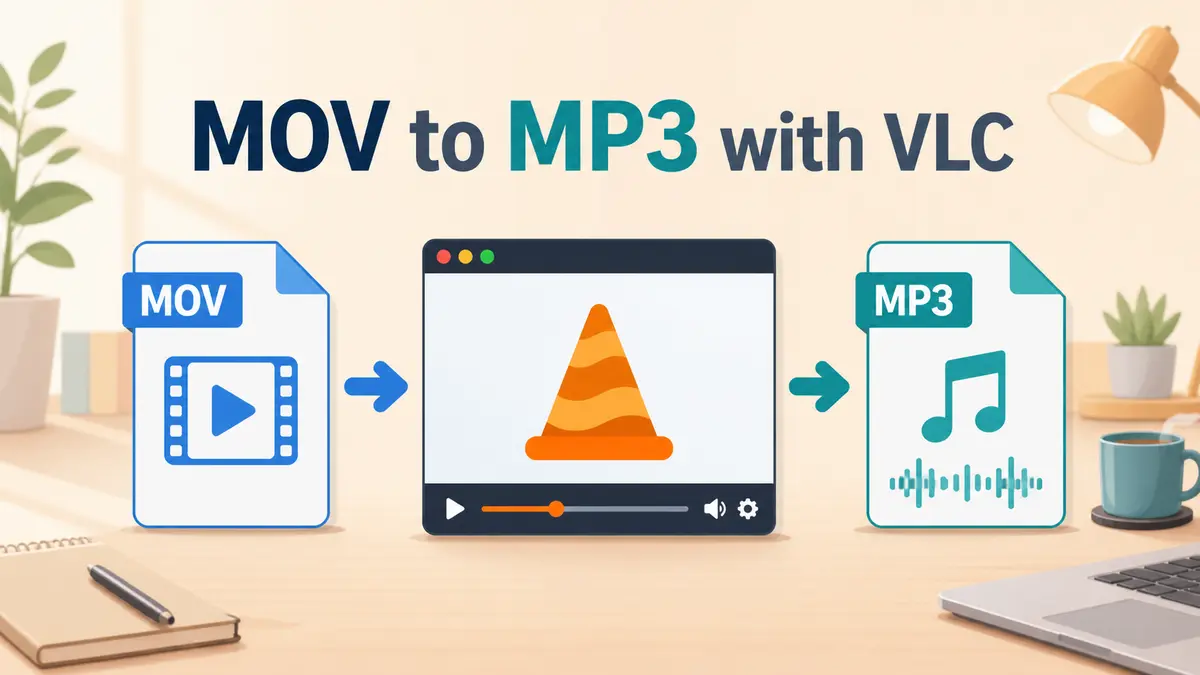
You can convert MOV to MP3 with VLC by using VLC's convert/transcode workflow, choosing your MOV file as the source, selecting an MP3 audio output profile, and saving the result locally. VLC is useful if you already have it installed and want desktop software control. If you only need a faster no-required-upload workflow for everyday MOV audio extraction, movtomp3.cc is usually simpler.
Quick Answer
- VLC can work as a local MOV to MP3 converter, but the steps are more manual than a browser queue.
- Use VLC when you want desktop software and are comfortable choosing conversion settings.
- Use movtomp3.cc when you want to add MOV files in the browser and download MP3 results without installing software.
- The browser tool supports up to 10 files and 2GB total per queue.
- MP3 is a lossy format, so neither VLC nor a browser converter can make a truly lossless MP3.
- For batch work, ZIP download is easier in the browser workflow.
Table of Contents
- Can VLC Convert MOV to MP3?
- How to Convert MOV to MP3 with VLC
- VLC vs Browser MOV to MP3 Converter
- When VLC Is the Better Choice
- When movtomp3.cc Is Simpler
- Troubleshooting VLC MOV to MP3 Conversion
- FAQ
Can VLC Convert MOV to MP3?
Yes. VLC media player includes conversion and transcoding features that can read media files and save converted output locally. VideoLAN also documents VLC desktop conversion topics such as extracting audio, and the official VLC feature list includes broad format support on the VideoLAN website.
That makes VLC a reasonable option for users who already prefer desktop software. The tradeoff is that VLC is a media player first, so the conversion path can feel less direct than a single-purpose MOV to MP3 web tool.
For a one-off file, VLC is fine. For multiple MOV files, repeated settings, or quick audio extraction, a focused browser workflow can be easier.
How to Convert MOV to MP3 with VLC
Step 1: Install or open VLC
If VLC is already installed, open it. If not, use the official VLC download page rather than a third-party installer.
Step 2: Open the Convert or Save workflow
In VLC, look for the media conversion workflow. The exact menu labels can vary by operating system and VLC version, but the common desktop path is built around opening media, choosing convert/save, and selecting an output profile.
Step 3: Add your MOV file
Choose the .MOV file you want to convert. This can be a QuickTime recording, iPhone video, camera export, screen recording, or other MOV container that includes an audio track.
Step 4: Choose MP3 as the output
Select an audio output profile that creates MP3. If VLC shows profile settings, check that the output is audio-only and that the destination filename ends with .mp3.
Step 5: Save and review the MP3
Start the conversion and wait for VLC to finish. Then play the MP3 before deleting the MOV source file. If the output is silent, distorted, incomplete, or saved with the wrong extension, adjust the profile or try a simpler browser workflow.
VLC vs Browser MOV to MP3 Converter
| Need | VLC | movtomp3.cc |
|---|---|---|
| Software install | Requires VLC installed | No desktop install for the main workflow |
| File handling | Local desktop app | Browser-based workflow |
| Best fit | Users who want desktop conversion control | Users who want quick MOV audio extraction |
| Batch workflow | Manual repeated setup can be slower | Queue supports up to 10 files and 2GB total |
| ZIP download | Not the main workflow | Available for completed MP3 results |
| Bitrate control | More profile control may be available | Built-in quality profile, no manual 320kbps selector |
| Learning curve | Higher for non-technical users | Lower for ordinary MOV to MP3 tasks |
The practical choice is simple: use VLC if you want local software and conversion options; use movtomp3.cc if you want a direct browser path from MOV file to MP3 download.
When VLC Is the Better Choice
VLC is a better fit when:
- you already have VLC installed and trust your local setup;
- you want a desktop app instead of a browser tab;
- you need to inspect or play the source MOV before converting;
- you are comfortable adjusting conversion profiles;
- your browser does not have enough memory for the source file;
- you want a local fallback when an online page is unavailable.
VLC is also useful when you need a general-purpose media tool rather than a single-purpose converter. It can play many media files, inspect playback problems, and handle conversion tasks from one application.
When movtomp3.cc Is Simpler
movtomp3.cc is simpler when the goal is just MOV audio extraction:
- open the website;
- add one or more MOV files;
- convert them in the browser workflow;
- download MP3 results;
- use ZIP download for completed batches.
The current browser queue supports up to 10 files and 2GB total. It also includes large-file risk checks that can consider file size, queue size, device memory, CPU concurrency, and mobile status.
That makes it a better match for everyday use cases: iPhone clips, QuickTime recordings, lectures, interviews, voice notes, screen recordings, and repeated small batches.
Troubleshooting VLC MOV to MP3 Conversion
VLC saves the file without .mp3
Check the destination filename and output profile. The filename should end with .mp3, and the selected profile should produce MP3 audio rather than another container or codec.
The MP3 has no sound
The MOV file may not contain an audio track, or VLC may have selected the wrong stream. Play the source MOV first and confirm it has audio before converting.
The output sounds worse than expected
MP3 is lossy, and converting from an already-compressed MOV can add another compression step. Start from the original MOV file when possible, and avoid repeated conversions.
VLC feels too complicated
Use the browser workflow instead: open the MOV to MP3 converter, add the MOV file, convert, and download the MP3. For ordinary audio extraction, that is the cleaner path.
VLC cannot read the source file
The source MOV may be damaged, incomplete, encrypted, or encoded in a way your VLC setup cannot handle. Try playing the file first, then try a different source export if playback fails.
Related Guides
- How to Convert MOV to MP3
- Batch Convert MOV to MP3
- Convert Large MOV to MP3 Without Uploading
- MOV to MP3 Quality and Bitrate Guide
- MOV to MP3 with FFmpeg
- Convert MOV to MP3 on Mac
- QuickTime to MP3
FAQ
Can VLC convert MOV to MP3?
Yes. VLC includes conversion and transcoding features that can be used to convert a MOV file into an MP3 audio output. The workflow is local and software-based, but it requires choosing the correct source file, output profile, and destination filename.
Is VLC better than an online MOV to MP3 converter?
VLC is better when you want desktop software control or already have VLC installed. A browser-based MOV to MP3 converter is simpler when you only need quick audio extraction, a queue, and MP3 downloads without installing another app.
Does VLC upload my MOV file?
No. VLC is a desktop application, so the conversion runs locally on your computer. If privacy and local processing are the main reasons you are considering VLC, a browser-based no-required-upload workflow can also be a practical option.
Why did VLC create a file that is not MP3?
The output profile or filename may be wrong. Make sure you choose an MP3 audio profile and save the destination with a .mp3 extension. If the result still looks wrong, try converting one file at a time and check the settings again.
Can I batch convert MOV to MP3 in VLC?
VLC is not usually the easiest tool for simple batch MOV to MP3 work. If you want to convert several MOV files and download completed MP3 results together, the batch conversion guide may be easier.
Does VLC support 320kbps MP3?
VLC may expose more audio profile controls than a simple browser converter, depending on version and setup. If you specifically need exact bitrate control, verify the VLC profile before converting. movtomp3.cc currently does not offer a manual 320kbps selector.
Start Converting
If you want software control, VLC is a reasonable local option. If you want the shortest path from MOV to MP3 without installing software, use the browser workflow: