Batch Convert MOV to MP3: Queue and ZIP Guide
Learn how to batch convert MOV to MP3 in your browser, manage the 10-file/2GB queue, download MP3s as ZIP, and avoid large-file issues.
Want to convert a file now?
Use the same workflow described in this guide and start directly from the main converter page.
Batch Convert MOV to MP3: Queue and ZIP Guide
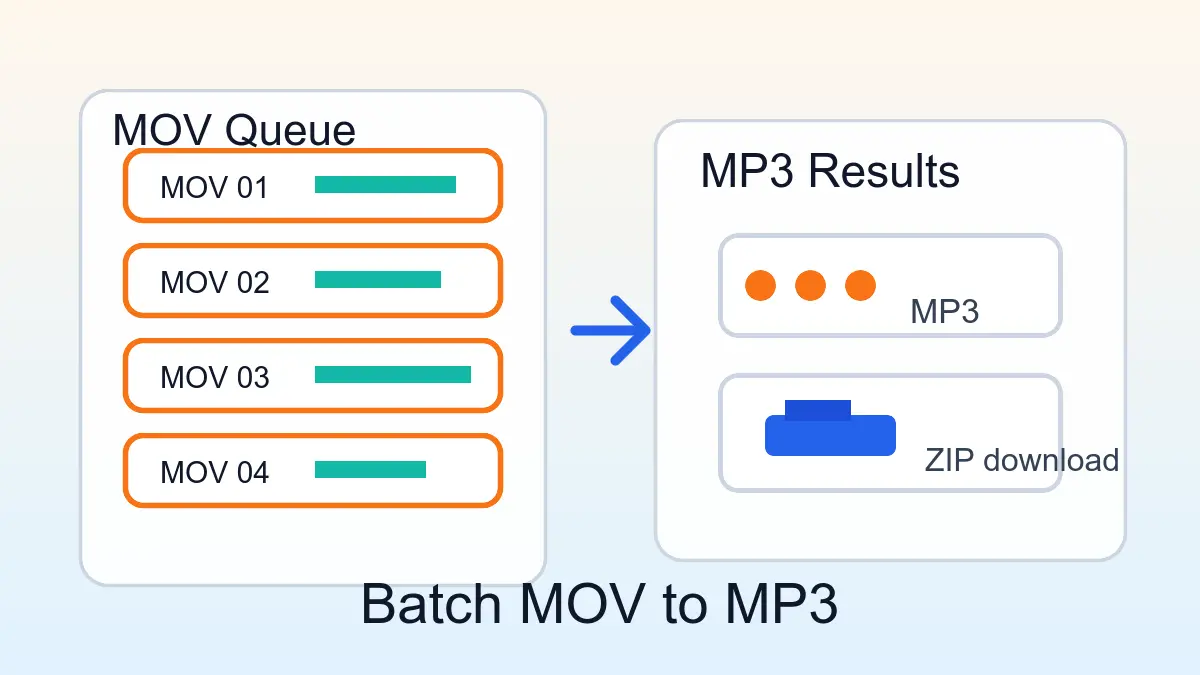
To batch convert MOV to MP3, use a converter with a queue: add several .MOV or QuickTime-style video files, convert them in the browser, then download each MP3 or download completed results as a ZIP. This is useful when you have many short clips, meeting recordings, class videos, voice notes, or screen recordings and you do not want to repeat the same one-file workflow over and over.
If your files are ready, start here: open the MOV to MP3 converter.
Quick Answer
- You can batch convert MOV to MP3 on movtomp3.cc with a browser-based queue.
- The current queue supports up to 10 files and 2GB total.
- Completed MP3 files can be downloaded one by one or together as a ZIP.
- Very large files should be batched carefully to avoid browser memory pressure.
- The source files are handled through the browser workflow, without a required upload-first conversion step.
- The tool uses a built-in MP3 quality profile, not a manual 320kbps selector.
Table of Contents
- When Batch MOV to MP3 Conversion Makes Sense
- How to Batch Convert MOV to MP3
- Batch Size Checklist
- How ZIP Download Helps
- Browser Limits to Know Before You Start
- Common Batch Conversion Mistakes
- FAQ
When Batch MOV to MP3 Conversion Makes Sense
Batch conversion is best when the task is repetitive. Instead of converting one MOV, downloading one MP3, and starting over, you can prepare several files in one queue and let the browser workflow process them together.
This is especially useful for:
- a folder of iPhone
.MOVclips where you only need the audio; - several QuickTime screen recordings from the same project;
- multiple meeting or class recordings;
- short interview clips that need MP3 review copies;
- camera exports where the video is no longer needed;
- repeated audio extraction tasks where ZIP download saves cleanup time.
Batch conversion is not the same as unlimited conversion. The current product boundary is clear: up to 10 files and 2GB total per queue.
How to Batch Convert MOV to MP3
Step 1: Open the converter
Go to movtomp3.cc in a modern desktop browser. A desktop browser is usually the better choice for batch work because it has more room for memory and CPU-heavy processing than a mobile browser.
Step 2: Add multiple MOV files
Drag several .MOV files into the upload area, or click the upload zone and select files from your device.
The queue can contain up to 10 files and 2GB total. If you have more than 10 files, split them into smaller groups. If one or two files are very large, keep the batch smaller instead of filling the whole queue.
Step 3: Review the queue
Before starting, check that each item is the file you intended to convert. Remove duplicates, unsupported files, or files that you do not need.
If the queue looks risky because of file size, total size, mobile status, memory, or CPU constraints, the tool may show a warning before processing.
Step 4: Convert MOV files to MP3
Start the conversion and keep the tab open while the queue runs. The tool extracts audio from the MOV files and creates MP3 results through the browser-based workflow.
Avoid starting other heavy browser tasks during a batch conversion. Video files can be large even when the final MP3 files are much smaller.
Step 5: Download individual MP3 files or ZIP
When files finish, you can download MP3 outputs one by one. If you converted several files, use ZIP download to save completed MP3 files together.
Keep the source MOV files until you have checked the MP3 outputs and confirmed that the audio is complete.
Batch Size Checklist
Use this checklist before adding many MOV files at once:
| Check | Recommended choice | Why it matters |
|---|---|---|
| File count | Up to 10 files | Matches the current queue limit |
| Queue size | Up to 2GB total | Prevents starting a batch beyond the supported cap |
| Very large MOV files | Convert fewer at once | Reduces browser memory pressure |
| Browser | Use a modern desktop browser | Better fit for repeated local processing |
| Device load | Close heavy apps and tabs | Leaves more CPU and memory for encoding |
| Download method | Use ZIP for completed batches | Keeps multiple MP3 outputs together |
| Quality expectations | Treat MP3 as practical audio | MP3 is lossy and not an archival format |
How ZIP Download Helps
ZIP download is useful when you process more than one file because it keeps the output organized. Instead of clicking several downloads and then finding each MP3 separately, you can collect completed results into one compressed package.
That is helpful for workflows such as:
- sending several interview clips to a teammate;
- saving lecture audio files by date;
- collecting screen-recording narration from one project;
- archiving quick review copies;
- moving finished MP3 files into another app.
The ZIP option does not change audio quality. It only changes how completed MP3 files are packaged for download.
For technical background, the browser can read user-selected local files through browser file APIs such as the File API, and client-side conversion commonly depends on browser capabilities such as WebAssembly. Those links are background references; the practical workflow is still the one shown in the converter.
Browser Limits to Know Before You Start
Batch converting video files in a browser is practical, but it still depends on the current device. A queue full of small MOV files is very different from a queue with several long high-resolution recordings.
Current product boundaries:
- input formats include MOV and common video formats shown on the main page;
- output format is MP3;
- queue limit is up to 10 files;
- queue size limit is 2GB total;
- large-file risk checks can consider device memory, CPU concurrency, total queue size, mobile status, and file size;
- manual 320kbps selection is not currently available.
If you need exact bitrate, channel, codec, naming, or scripting control, a desktop workflow such as FFmpeg may be a better fit. If you want a simple no-required-upload browser workflow for repeated files, the queue is the faster path to try first.
Common Batch Conversion Mistakes
Mistake 1: Filling the queue with very large files
The queue supports up to 10 files and 2GB total, but a full queue is not always the most stable choice. If the files are large, convert fewer at a time.
Mistake 2: Closing the tab before downloads finish
Keep the tab open until the conversion and download steps are complete. Browser-side work stops when the page is closed.
Mistake 3: Deleting source MOV files too early
Keep the original MOV files until you have played the MP3 outputs and confirmed that the sound is complete.
Mistake 4: Expecting ZIP to make audio better
ZIP download is an organization feature. It does not improve bitrate, repair noisy audio, or change the MP3 encoding settings.
Mistake 5: Re-converting the same audio repeatedly
Repeated lossy conversion can make audio worse. Convert from the best available MOV source once, then keep the finished MP3.
Related Guides
- How to Convert MOV to MP3
- Convert Large MOV to MP3 Without Uploading
- MOV to MP3 Quality and Bitrate Guide
- MOV to MP3 with VLC
- MOV to MP3 with FFmpeg
- Convert MOV to MP3 on Mac
- QuickTime to MP3
FAQ
Can I batch convert MOV to MP3 online?
Yes. movtomp3.cc supports a browser-based queue for MOV to MP3 conversion. You can add multiple MOV files, process them through the browser workflow, and download finished MP3 files individually or together as a ZIP.
How many MOV files can I convert at once?
The current queue supports up to 10 files and 2GB total. If your files are large, it is better to use a smaller batch so the browser has enough memory and CPU headroom to finish.
Can I download all converted MP3 files as a ZIP?
Yes. After multiple files finish converting, you can use ZIP download for completed MP3 outputs. ZIP download is meant for file organization and convenience; it does not change the audio quality of the MP3 files.
Does batch conversion require uploading my MOV files?
The main workflow is designed around browser-side processing rather than a required upload-first conversion step. You still need to load the website and conversion resources, but the source MOV files are handled through the browser workflow.
Is batch MOV to MP3 conversion good for large files?
It can be, as long as the batch stays within the queue limit and the device has enough resources. For very large MOV files, convert one or two at a time instead of filling the entire queue.
Can I choose 320kbps for every file in the batch?
Not currently. The tool uses a built-in MP3 quality profile and does not expose a manual 320kbps selector. This keeps the page aligned with the current product behavior.
What should I do if one file in the batch fails?
Remove the failed item, check whether the source MOV has a playable audio track, and try again with a smaller queue. If the file is very large or unusual, a desktop conversion workflow may be more reliable.
Start a Batch Conversion
If you have several MOV or QuickTime-style files ready, use the queue workflow to batch convert MOV to MP3 and download finished results together: