Convert MOV to MP3 on Mac
Learn how to convert MOV to MP3 on Mac in your browser, when QuickTime helps, and how to keep files local with a no-signup workflow.
Want to convert a file now?
Use the same workflow described in this guide and start directly from the main converter page.
Convert MOV to MP3 on Mac
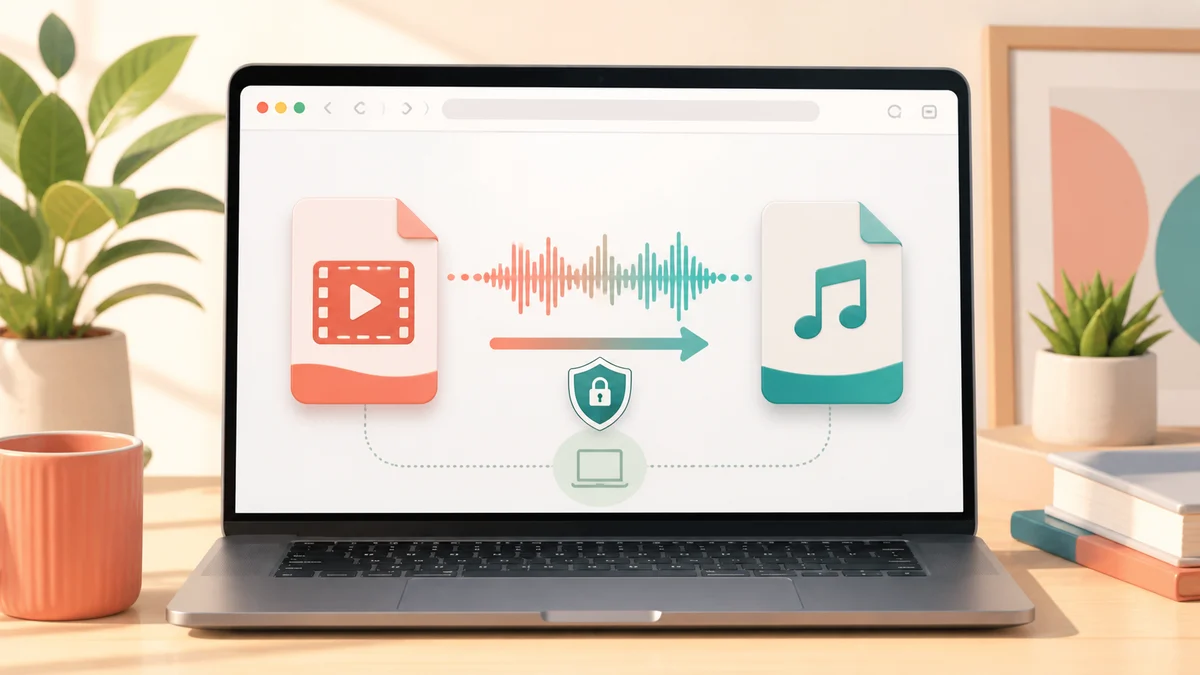
To convert MOV to MP3 on Mac, the simplest route is to use a browser-based converter: add the .mov file, extract the audio track, and download the MP3. This is useful when you recorded a video on iPhone, QuickTime Player, or another Mac app and only need the sound.
If you already have the file ready, start here: open the MOV to MP3 converter.
Quick Answer
- Use movtomp3.cc when your final target is an MP3 file.
- Add one
.MOVfile or several files to the browser queue. - Click Convert and wait for the browser-side workflow to finish.
- Download the MP3, or use ZIP download for multiple completed files.
- The queue supports up to 10 files and 2GB total.
- QuickTime Player can help inspect or trim a MOV, but its built-in audio-only export is not the same as direct MP3 output.
Table of Contents
- Best Way to Convert MOV to MP3 on Mac
- How to Convert MOV to MP3 on Mac
- Can QuickTime Player Convert MOV to MP3?
- When This Mac Workflow Is Useful
- Quality and Large File Notes
- Troubleshooting on Mac
- FAQ
Best Way to Convert MOV to MP3 on Mac
For most Mac users, the best MOV to MP3 workflow is a dedicated converter in the browser. It avoids installing a separate desktop app, keeps the steps short, and focuses on the actual goal: turning the audio track inside a MOV file into an MP3 file.
| Option | Best for | Output focus | Tradeoff |
|---|---|---|---|
| movtomp3.cc | Fast MOV to MP3 conversion on Mac | MP3 | Large files still depend on browser memory and CPU |
| QuickTime Player | Playing, checking, or trimming MOV files | MOV or audio-only MPEG-4/AAC | Not a direct MP3 converter workflow |
| VLC | Users already familiar with media conversion menus | Many formats | More settings and more steps |
| FFmpeg | Advanced users who need command-line control | Precise output control | Requires terminal commands |
If you only want a playable MP3 from a MOV, start with the browser converter. If you need to trim the video first, QuickTime Player can be useful before conversion.
How to Convert MOV to MP3 on Mac
Step 1: Open the converter in Safari, Chrome, or Edge
Go to movtomp3.cc on your Mac. The workflow runs in the browser, so you do not need to upload the file as a separate first step or create an account.
For heavier files, a desktop browser is a better fit than a mobile browser because it usually has more memory and processing headroom.
Step 2: Add your MOV file
Drag your .MOV file into the upload area, or click the upload zone and choose the file from Finder.
You can add one file for a quick conversion or add several files to the queue. The current queue limit is up to 10 files and 2GB total.
Step 3: Start the MOV to MP3 conversion
Click Convert. The tool extracts the audio track and creates an MP3 output through the browser-based workflow.
Conversion time depends on the source file size, codec, browser memory, CPU performance, and the number of files in the queue.
Step 4: Download the MP3
When processing finishes, download the MP3 to your Mac. If you converted several files, download them individually or use the ZIP download option for completed outputs.
Keep the original MOV until you confirm the MP3 sounds right.
Can QuickTime Player Convert MOV to MP3?
QuickTime Player is useful for playing, trimming, and inspecting MOV files on Mac, but it should not be treated as a direct MOV to MP3 converter.
Apple's QuickTime Player documentation says the Audio Only export creates an Apple MPEG-4 audio file with an AAC audio track, not an MP3 file. You can read the relevant Apple support page here: Export movies using QuickTime Player on Mac.
That means QuickTime Player can be a helpful preparation tool, but if your final file needs to be .mp3, use a converter that outputs MP3 directly.
When This Mac Workflow Is Useful
Converting MOV to MP3 on Mac is useful when the video track is no longer needed and the audio is the important part.
Common examples include:
- Saving the audio from an iPhone video
- Extracting sound from a QuickTime screen recording
- Turning a class, interview, or meeting recording into audio
- Preparing spoken content for transcription
- Reducing a large video into a smaller audio-only file
- Creating an audio file that is easier to play across devices
If you still need the visual content, subtitles, or timing references, keep the MOV as the source file.
Quality and Large File Notes
MP3 is an audio-only, lossy format. Converting MOV to MP3 is meant to create a practical listening file, not a mathematically lossless copy of the source media.
The current movtomp3.cc workflow uses a built-in browser-side quality profile. It does not expose a manual 320kbps selector.
For better results on Mac:
- Use a modern desktop browser.
- Close heavy apps if the MOV file is large.
- Convert fewer files at once if your Mac slows down.
- Keep the original MOV until you check the MP3.
- Use a desktop tool or FFmpeg if you need exact bitrate control.
Troubleshooting on Mac
The MOV file is very large
Try converting one file at a time. The queue supports up to 2GB total, but browser memory and CPU still affect stability.
The conversion feels slow
Large MOV files can take longer because the browser has to read the source media and encode the MP3. Speed depends on your Mac model, browser, source codec, and current system load.
The output has no sound
The source MOV may have an unsupported audio track, a damaged media stream, or no audio track at all. Open the file in QuickTime Player first to confirm it actually plays sound.
I need exact bitrate control
Use a desktop audio workflow or FFmpeg when you need precise technical settings. The browser converter is designed for a simple, everyday MOV to MP3 flow.
Related Guides
- How to Convert MOV to MP3
- QuickTime to MP3
- Convert Large MOV to MP3 Without Uploading
- Batch Convert MOV to MP3
- MOV to MP3 with VLC
- MOV to MP3 with FFmpeg
- MOV to MP3 Quality and Bitrate Guide
FAQ
Can I convert MOV to MP3 on Mac without installing software?
Yes. Use a browser-based converter such as movtomp3.cc, add the .MOV file from your Mac, start conversion, and download the MP3 output. The workflow is designed for everyday MOV audio extraction without a required software install.
Does QuickTime Player export MP3?
QuickTime Player can export audio-only files, but Apple's current documentation describes that export as MPEG-4 audio with an AAC track. If your required output is MP3, use a dedicated MOV to MP3 converter.
Can I convert iPhone MOV videos to MP3 on Mac?
Yes, for common iPhone MOV files that the browser and conversion engine can process. Add the file on your Mac, convert it, and download the MP3. Keep the original MOV until you confirm the result.
Is MOV to MP3 conversion on Mac private?
The main movtomp3.cc workflow is designed around browser-side processing rather than a required upload-first flow. Very large files still depend on your browser and Mac resources, so process smaller batches if needed.
Can I batch convert MOV files to MP3 on Mac?
Yes. You can add multiple supported files to the queue and download completed MP3 outputs individually or as a ZIP. The current queue limit is up to 10 files and 2GB total.
Start Converting
If you want the shortest path from a MOV file on your Mac to a playable MP3, use the browser workflow: